
HTML Favicon
What Is a Favicon in HTML?
A favicon (short for “favorite icon”) is a small icon associated with your website, visible in browser tabs, bookmark lists, and sometimes even in search results.
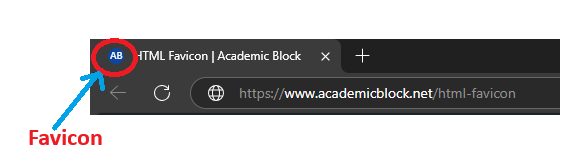
How to Add a Favicon in HTML?
To set favicon HTML correctly, include a <link> element in your document’s <head> section. You can add favicon HTML using an ICO (recommended for backward compatibility) or PNG (for sharper icons and transparent backgrounds) file. Also make sure that your favicon size is at least 32×32 pixels. To support high-DPI displays, you should consider adding a 16×16 and 48×48 PNG alongside your ICO file. You can place it in your site’s root directory for automatic detection by some browsers.
HTML Favicon Examples
1. Basic ICO Favicon
This example shows how to add a favicon in HTML with an ICO file named favicon.ico placed in your root folder.
          <!-- Example: Basic ICO favicon setup -->
<!DOCTYPE html>
<html>
  <head>
    <meta charset="UTF-8">
    <title>Basic ICO Favicon</title>
    <link rel="icon" href="/favicon.ico" type="image/x-icon">
  </head>
  <body>
    <p>Image below shows how your Favicon will look in the Browser.</p>
<img src="https://www.academicblock.net/wp-content/uploads/2025/05/HTML-Favicon-Example-AB.png" >
  </body>
</html>
2. PNG Favicon with Multiple Sizes
In this HTML code example, you’ll learn how to set PNG images as favicon in various devices.
          <!-- Example: PNG favicon setup for multiple sizes -->
<!DOCTYPE html>
<html>
  <head>
    <meta charset="UTF-8">
    <title>PNG Favicon Example</title>
    <link rel="icon" href="/favicon-32x32.png" sizes="32x32" type="image/png">
    <link rel="icon" href="/favicon-16x16.png" sizes="16x16" type="image/png">
  </head>
  <body>
    <h1>Multiple Sizes Favicon Demo</h1>
<img src="https://www.academicblock.net/wp-content/uploads/2025/05/Different-Favicon-Size-Example.jpg" >
  </body>
</html>
3. Custom Favicon with Android Support
Likewise, you can also add Android-specific icons or Apple icons using HTML favicon tags. Using this HTML Code, browser will automatically detect device type and will display suitable favicon accordingly.
          <!-- Example: Custom favicon for Apple and Android -->
<!DOCTYPE html>
<html>
  <head>
    <meta charset="UTF-8">
    <title>Custom Favicon Example</title>
    <link rel="icon" href="/favicon.ico" type="image/x-icon">
    <link rel="apple-touch-icon" href="/apple-touch-icon.png">
  </head>
  <body>
    <h1>Custom Favicon, Code explanation </h1>
   <p>This code will allow you to display custom favicon depending on the user device. With this code "favicon.ico" will appear in android device, while the apple device will see "apple-touch-icon.png".</p>
  </body>
</html>
4. Using Inline SVG as Favicon
Inline SVG as a favicon embeds your SVG markup directly in the <link rel=”icon” href=”data:image/svg+xml,…”> tag, removing the need for separate image files. This technique delivers sharp, resolution-independent icons that scale perfectly on any device and can be styled or animated via CSS.
          <!-- Example: SVG favicon inline -->
<!DOCTYPE html>
<html>
  <head>
    <meta charset="UTF-8">
    <title>SVG Favicon</title>
    <link rel="icon" href="data:image/svg+xml,<svg xmlns='http://www.w3.org/2000/svg' viewBox='0 0 16 16'><text y='14' font-size='16'>🚀</text></svg>" type="image/svg+xml">
  </head>
  <body>
    <h1>SVG Favicon Inline</h1>
    <p> When you will run this HTML code you can see 🚀 as favicon in your web browser.</p>
  </body>
</html>
Additional Tips for HTML Favicon
You should always check your favicon in different browsers and devices. In conclusion, by following above examples and using proper favicon setup for website, you can ensure a consistent brand presence and user accessibility. Table below provides a consolidated overview of favicon formats and usage across all major browsers:
Web Resources on HTML Favicon
1. University of Washington – Creating a Favicon
2. Marietta College – Favicon Tutorial
3. UMass Amherst – Add a Favicon to Your Website
4. San José State University – Spirit Mark Favicon
5. MDN Web Docs – Favicon
6. Washington and Lee University: HTML5, Web Tools, and Favicon
Questions and Answers related to HTML Favicon
To add a favicon in HTML, place the following line inside the <head> section of your HTML file:
<link rel="icon" type="image/png" href="favicon.png">
Ensure the favicon file is in the correct directory, and clear the browser cache if the favicon does not update.
The proper HTML favicon tag is:
<link rel="icon" type="image/x-icon" href="favicon.ico">
For best compatibility, use both favicon.ico and favicon.png files in your root directory and reference them correctly in the head section.
To change a favicon, replace the current favicon file and update the <link> tag in the <head>. Clear browser cache or force refresh using Ctrl + F5 to see changes. Also, check the correct file path and format.
Use multiple favicon sizes (16×16, 32×32, 48×48, 64×64). Provide PNG and ICO formats for broad compatibility. Store the favicon in the root directory and reference it correctly in the <head> section for all devices and browsers.
Use an online favicon generator to convert PNG to ICO. Save the output as favicon.ico and place it in the root directory. Add <link rel="icon" type="image/png" href="favicon.png"> in the <head> section.
Visit a favicon generator website, upload an image, and download the generated ICO file. Place it in your website’s root directory and link it in the HTML head using the <link> tag.
ICO files support multiple resolutions and are widely supported. PNG provides better transparency but may not work on older browsers. WebP and SVG favicons are emerging but not universally supported.
Insert the following in the <head> section:
<link rel="icon" href="favicon.ico" type="image/x-icon">. Ensure the favicon file is correctly placed and accessible.
The recommended favicon sizes are 16×16, 32×32, and 48×48 pixels. Use multiple resolutions in an ICO file or include various sizes in the <head> section for compatibility.
Follow online tutorials or Dreamweaver’s built-in tools. Use the <link> tag in the head section, ensuring correct file paths and testing across browsers for proper display.