
Reading and Writing External Files in MATLAB Get Certified
MATLAB provides powerful tools for handling external files. You can read data from and write data to various file formats such as text files, spreadsheets, and binary files.
Reading Files
MATLAB supports multiple functions to read external files. Here are some examples:
Reading Text Files
% Reading a text file
fileID = fopen('example.txt', 'r'); % Open the file in read mode
data = fread(fileID, '*char')';    % Read the content as characters
fclose(fileID);                   % Close the file
disp(data);Example output:
This is an example content from the text file.
Reading CSV Files
% Reading a CSV file
data = readmatrix('example.csv'); % Reads numerical data from a CSV file
disp(data);Reading Excel Files
% Reading an Excel file
data = readtable('example.xlsx'); % Reads data into a table
disp(data);MATLAB also allows you to select files interactively using a file-chooser window. This is useful when you want the user to pick a file at run time instead of hard-coding a path.
Windows-style File Selection with uigetfile
The uigetfile function opens a dialog box that lets the user choose a file:
% Interactive file selection
[filename, pathname] = uigetfile({'*.txt;*.csv;*.xlsx', 'Supported Files (*.txt, *.csv, *.xlsx)'; '*.*', 'All Files (*.*)'}, ...
                                   'Select a File');
% Check if the user pressed Cancel
if isequal(filename, 0) || isequal(pathname, 0)
    disp('User cancelled the file selection.');
else
    fullpath = fullfile(pathname, filename);
    fprintf('File selected: %s\n', fullpath);

    % Example of reading the file if it is a text file
    if endsWith(filename, '.txt')
        fileID = fopen(fullpath, 'r');
        content = fread(fileID, '*char')';
        fclose(fileID);
        disp('File content:');
        disp(content);
    else
        disp('This example currently supports only text files for reading.');
    end
endExample interaction:
File selected: C:\Users\YourName\Documents\example.txt
File content:
This is a sample text file content.
Writing Files
You can also write data to files using MATLAB:
Writing to Text Files
% Writing to a text file
fileID = fopen('output.txt', 'w'); % Open the file in write mode
fprintf(fileID, 'Hello, MATLAB!\nThis is a new file.');
fclose(fileID); % Close the fileAfter running the script examine output.txt to see the written content.
Writing to CSV Files
% Writing to a CSV file
data = [1 2 3; 4 5 6; 7 8 9];
writematrix(data, 'output.csv'); % Writes the matrix to a CSV fileWriting to Excel Files
% Writing to an Excel file
data = table(["John"; "Alice"; "Bob"], [23; 25; 28]);
data.Properties.VariableNames = {'Name', 'Age'};
writetable(data, 'output.xlsx'); % Writes the table to an Excel fileAdvanced File Handling
MATLAB also supports more advanced file-handling techniques:
Appending Data to Files
% Appending data to a file
fileID = fopen('output.txt', 'a'); % Open the file in append mode
fprintf(fileID, '\nAppending more text to the file.');
fclose(fileID); % Close the fileReading and Writing Binary Files
% Writing binary data
fileID = fopen('binaryfile.dat', 'w');
fwrite(fileID, [1.1, 2.2, 3.3], 'double');
fclose(fileID);

% Reading binary data
fileID = fopen('binaryfile.dat', 'r');
data = fread(fileID, 'double');
fclose(fileID);
disp(data);Expected output:
    1.1000
    2.2000
    3.3000
Creating and Saving a Plot as an Image
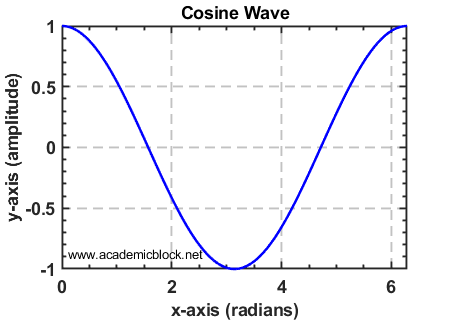
MATLAB allows you to create high-quality plots and save them as image files with custom dimensions and resolution. This is useful for presentations, publications, or sharing visual data.
The following script generates a cosine-wave plot and saves it as a JPEG with user-specified size and DPI:
% User-defined parameters
width = input('Enter the width of the image in pixels: ');
height = input('Enter the height of the image in pixels: ');
dpi = input('Enter the resolution (DPI): ', 's');
dpi = str2double(dpi);
% Generate a cosine wave plot
x = linspace(0, 2*pi, 1000);
y = cos(x);
figure;  % Create a new figure window
plot(x, y, 'b', 'LineWidth', 1.5);
title('Cosine Wave');
xlabel('x-axis (radians)');
ylabel('y-axis (amplitude)');
grid on;
% Customize and save the figure
set(gcf, 'PaperUnits', 'inches');
set(gcf, 'PaperPosition', [0 0 width/96 height/96]); % Convert px to inches (1 inch = 96 px)
filename = 'CosineWave.jpg';
print(filename, '-djpeg', ['-r', num2str(dpi)]);
disp(['Image saved as ', filename, ' with size ', num2str(width), 'x', num2str(height), ' pixels at ', num2str(dpi), ' dpi.']);Example interaction:
Enter the width of the image in pixels: 800
Enter the height of the image in pixels: 600
Enter the resolution (DPI): 300
Image saved as CosineWave.jpg with size 800x600 pixels at 300 dpi.
Useful MATLAB Functions for File Operations
Practice Questions
Test Yourself
1. Write a MATLAB script to read data from a CSV file and compute the sum of all values.
2. Create a binary file with floating-point data and read it back.
3. Write a MATLAB script to append text to an existing text file.